Nightdrive 0.6 Afterglow
The biggest Nightdrive update yet: Claude writes in any app, a welcome that sets up your computer with you, and five apps of Nightdrive's own.
Afterglow: the glow that stays in the sky after sunset, when the night drive begins – and it's a big one. If you're already running Nightdrive, nightdrive update brings all of it in.
Let Claude write for you
Enter a few rough words and Claude completes the text – in any app and in a tone that fits where you're writing. Select your notes, press ⌘⇧C, and Claude does its magic. Something that hasn't been seen in an operating system before.
Claude writes works in any app: a chat, a form, a document, a mail. Select a rough draft or a few notes and press ⌘⇧C (⌘ is Command on a Mac and the Windows key on a PC). Claude writes it out in a tone that fits the place, in the language you wrote in, and shows a preview. Enter puts it in place of what you selected.
With nothing selected, say in an empty document, the card asks what you'd like written ("a thank-you note to the team"), and it's done. To give Claude the whole picture, select the message you're answering together with your draft.
It even knows where it is:
- In a Claude Code session it writes your prompt.
- In a terminal (once you turn it on in its settings), you describe what you want done ("find the text files that mention invoices") and get the command on the command line, with a warning if it deletes, overwrites or needs root. It runs only with your permission.
- In a text document, tell it what to write in a few sentences.
- In a web browser, tell it to write the address of the website you want.
The possibilities are endless.
In Launcher › Settings › Claude writes you choose the model (Sonnet by default) and give it instructions of your own, sent with every request: "a relaxed tone", "end emails with my name", anything you want.
What it sends, and what it doesn't. Only the text you selected or typed, and the window's name and title, and only when you press the key. Never from a password manager or a private browser window. Claude has no tools there, not even your MCP servers or claude.ai connectors, so whatever text you select can't make it do anything but write. Nothing is saved as a session, and its text goes in only after you've seen it.
You need a Claude Pro or Max plan. Claude writes works through Claude Code, which needs one of them.
 Ferry – a mailbox between your devices.
Leave a photo, a file, a link or the clipboard at one end, and pick it up at the other. Ferry is now an open-source app of its own, for Linux, the Mac and the iPhone.
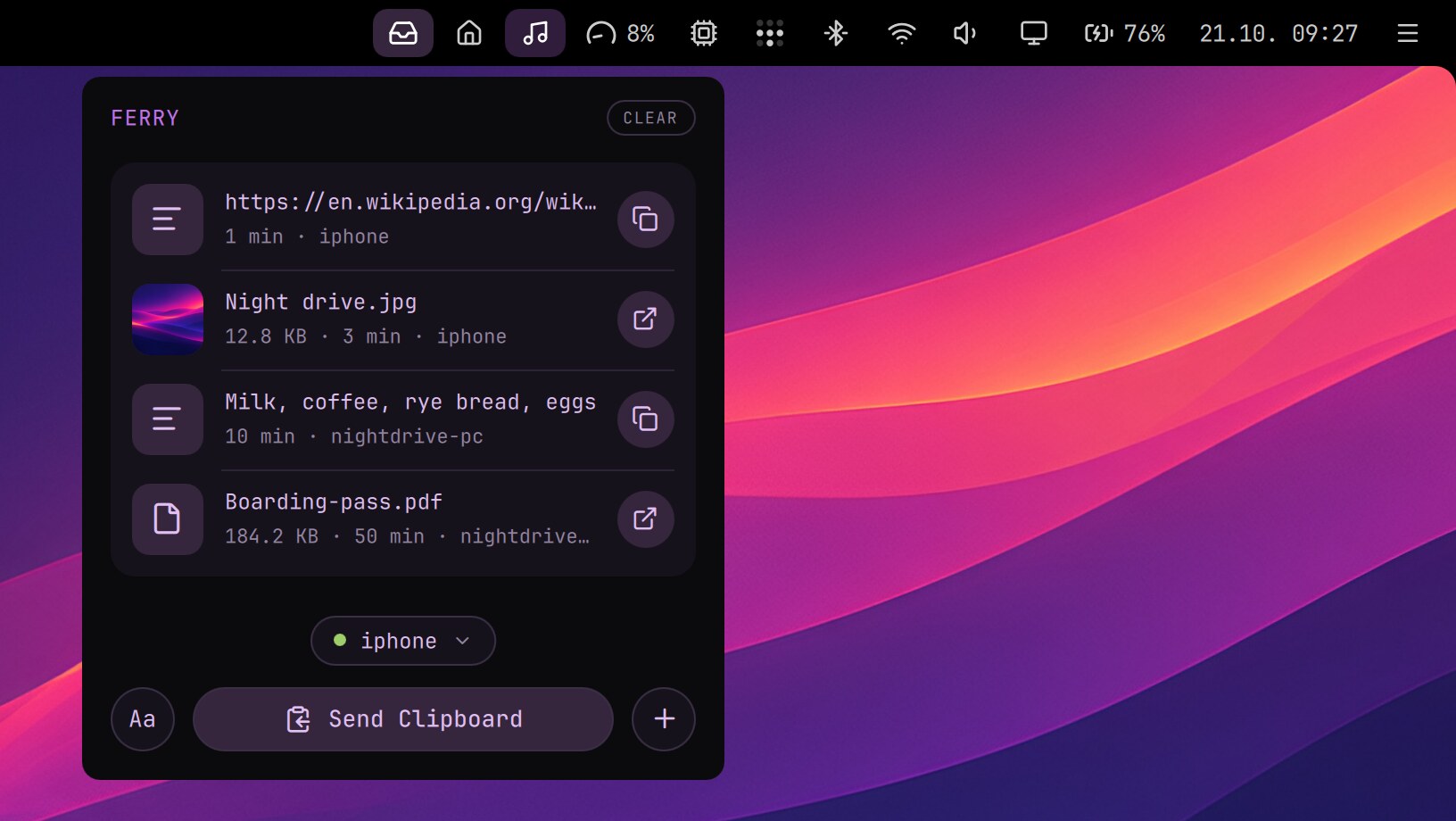
Ferry rides on Tailscale, your own private network, so it works from anywhere, and nothing goes through anyone else's server. A send to your phone waits in the box until the phone picks it up. A send to another computer goes straight there, and Send Clipboard puts it right on that computer's clipboard.
On Nightdrive, Ferry lives in the top bar. What your other devices sent waits in its menu: a click copies a text or opens a file, and files dropped on it go where you like. On the iPhone, Ferry's app is in public beta on TestFlight; another phone adds Ferry's page to its Home Screen, and it sends and receives like an app.
A code or a password you send leaves the box after 15 minutes, or as soon as it's copied, and stays out of your clipboard history.
Ferry comes with every new Nightdrive and stays quiet until you set it up. On an existing install, nightdrive update adds it once. For your Mac and other Linux computers, Ferry's page has the downloads.
 Mail – your inbox, quiet and quick.
Nightdrive now has a mail app of its own: your folders, your threads and the open message, and nothing else. Simple, fast and powerful.
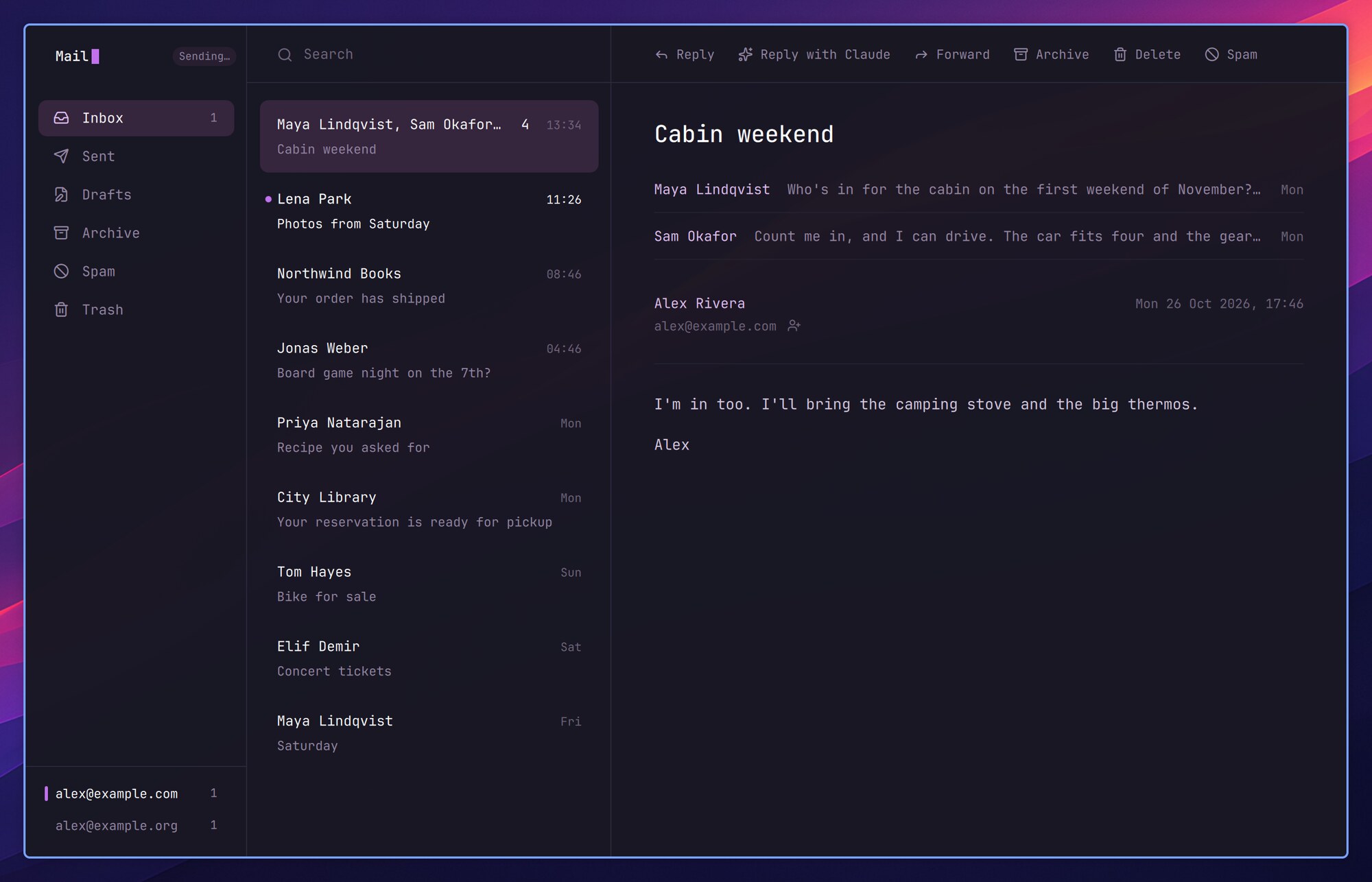
Your mail is kept in a folder on your computer, so Mail opens at once, searches in an instant and works offline. It works with any mail account that has IMAP: Gmail, iCloud, Fastmail or your own server, and as many accounts as you like, each with its own folders. New mail arrives within seconds, as a notification you can answer from: Reply, Reply with Claude, Archive or Delete.
It's made for the keyboard, and the mouse is welcome too. ↑ and ↓ move through your mail, Space pages through a message, a archives, d deletes and ⌘Z takes it back. ? shows every key. On a PC the ⌘ keys are Ctrl, as in Thunderbird and Outlook.
Writing opens in a window of its own, and you choose whether it floats or lives in the grid. Ctrl+Enter sends it.
Claude writes the reply. ⌘⇧C on a message, and Claude writes your reply in the message's language, for you to read and change before anything is sent. You choose what Claude reads: the whole thread, or only the text you select, so the thread stays on your computer.
Claude writes requires a Claude Pro or Max plan.
Private by default. Pictures from the web stay off, so a sender can't tell when you opened their mail. ⇧H opens a newsletter in your browser, laid out as it was meant to be, still without loading anything from the network. Only web and mail links open from a message.
Mail comes with every new Nightdrive and stays quiet until you add an account. When you first open it, Claude can set up your account with you, or you can do it by hand, a step at a time. On an existing install, nightdrive update adds Mail once; if you remove it, it stays removed.
 Contacts – the people you know, on your computer too.
Your contacts from iCloud, Google or any CardDAV server, in a window of their own and kept in sync with your phone.
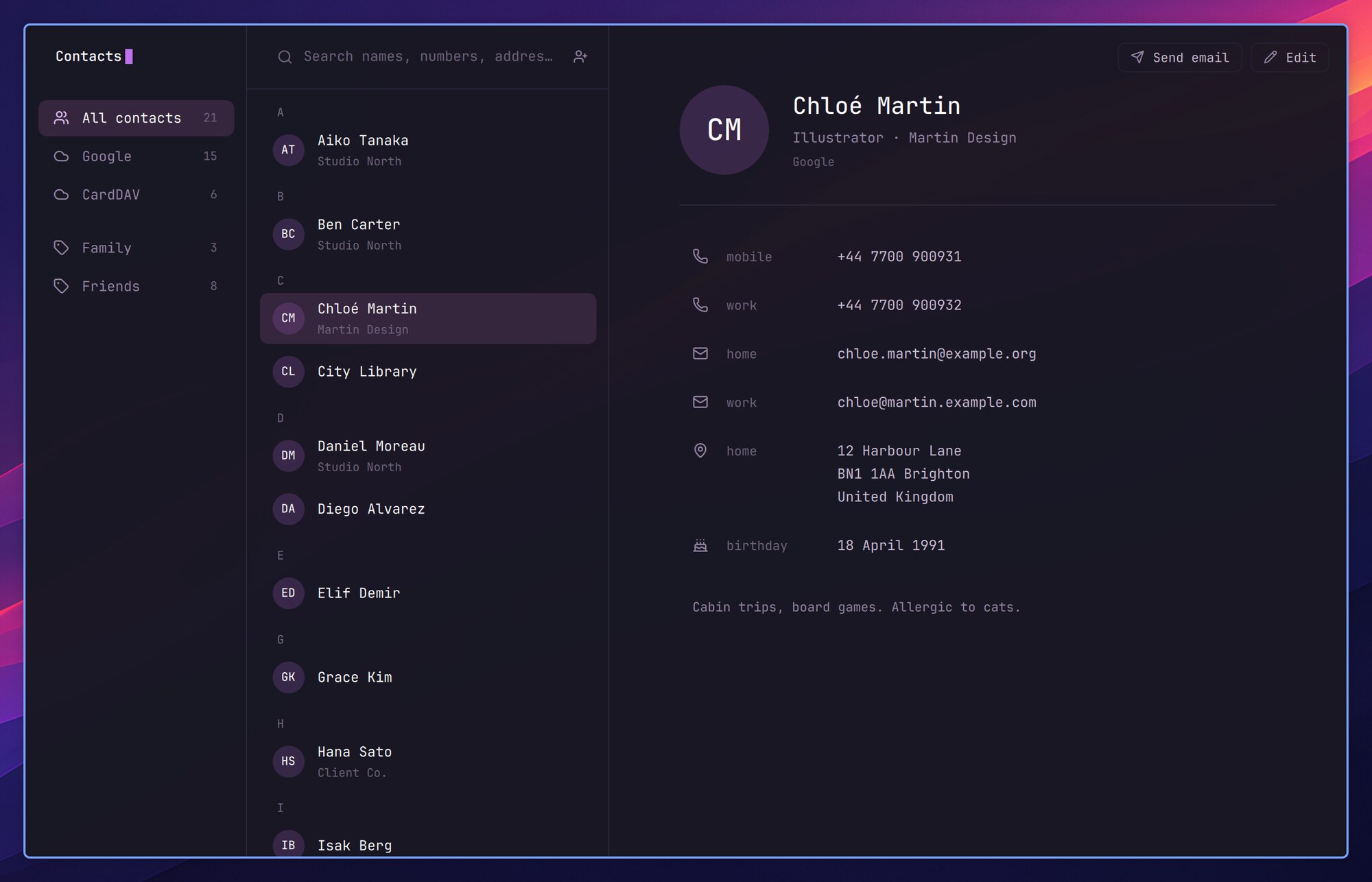
Contacts keeps your contacts on your computer, so they open at once and are there offline too. A contact you add, edit or delete goes to the server right away, and on to your phone. If the same contact changed on your phone in the meantime, the two are merged a field at a time, so neither change is lost. Photos come along, cropped the way you chose on your phone.
Someone who is in both iCloud and Google shows up once, with everything from both. Search finds names, companies, addresses and numbers, and Tab takes you through the list and the card: Enter writes an email, opens a link or copies a number.
It works with the rest of Nightdrive. Mail completes addresses from your contacts, and a button beside a sender opens their card or adds them. The Launcher finds people by name, company or number, and Enter copies a number or starts an email.
Like Mail, Contacts comes with every Nightdrive and stays quiet until you add an account, with Claude or by hand. On an existing install, nightdrive update adds it once.
 Deck – a record shelf for the streaming age.
Remember pulling a record off the shelf, dropping the needle and letting it play to the end? Deck, Nightdrive's Spotify player, now has a window that brings that back.
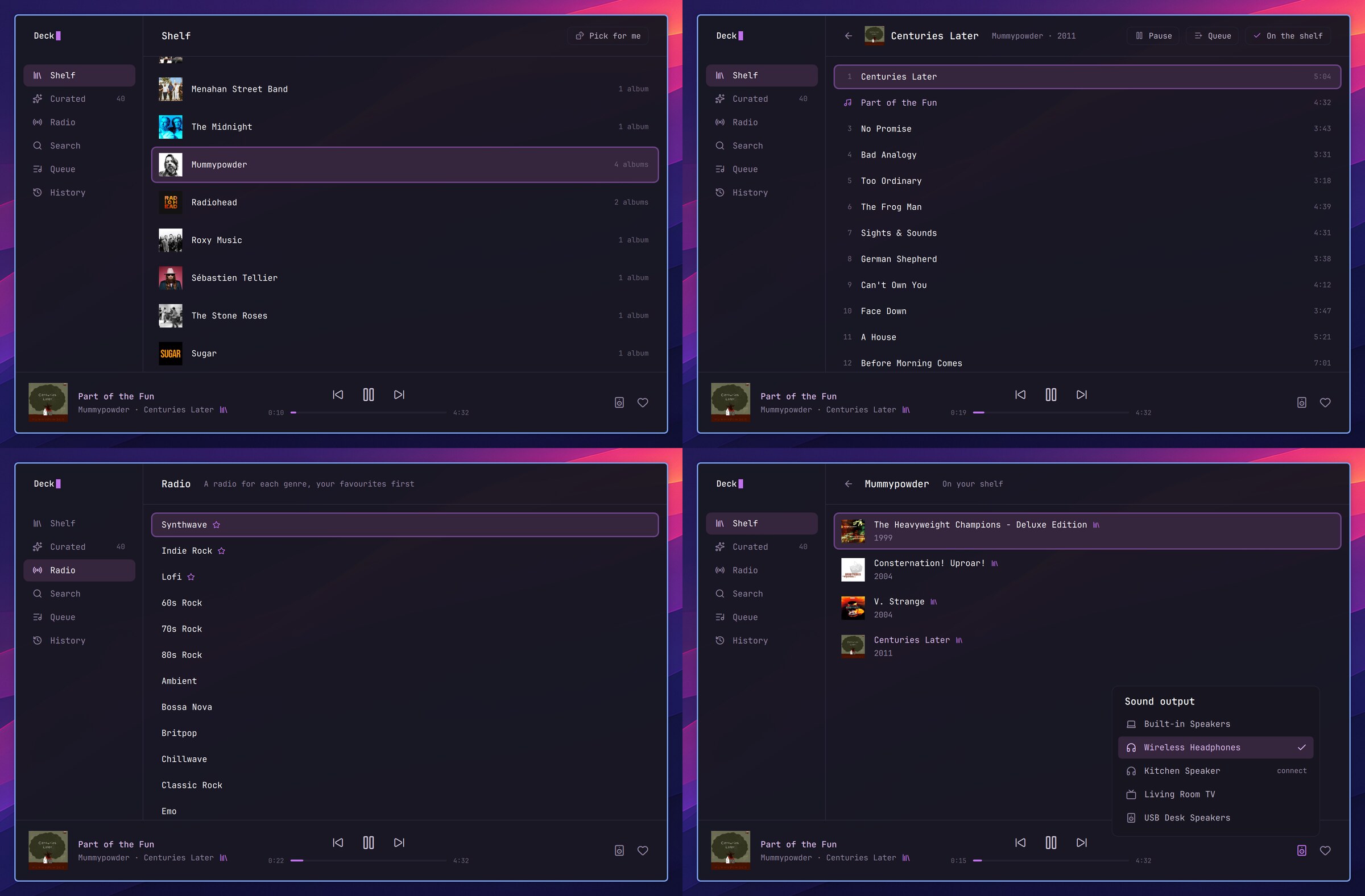
Your albums sit on a shelf of their own, covers and all, and you pick one for tonight and play it start to finish. Can't decide? Pick for me chooses one from your shelf or from Curated, and it won't hand you the same record again until it has been through the rest.
Curated is a list of albums you haven't heard yet, chosen by Claude from what you listen to on Last.fm, or from a few lines about your taste. Make a new list whenever you want one, and it learns from what you play and what you pass on.
Curated requires a Claude Pro or Max plan.
There's a radio for each genre, your favourites first, Spotify search, the queue and what you've played lately. The player along the bottom seeks, likes and picks the speaker or headphones to play on. Hyper M opens the window (Hyper is Caps Lock), ⌘W closes it and the music plays on.
Deck needs Spotify Premium. When you first open it, Claude can set it up with you, Curated included, or you can do it by hand in Welcome to Nightdrive. Deck now installs as a ready-made package, so there's no waiting for it to compile, and system updates keep it up to date.
 Garage – try anything, and take it back.
Virtual machines in a window of their own: take a snapshot before you try something, and go back to it if it goes wrong.
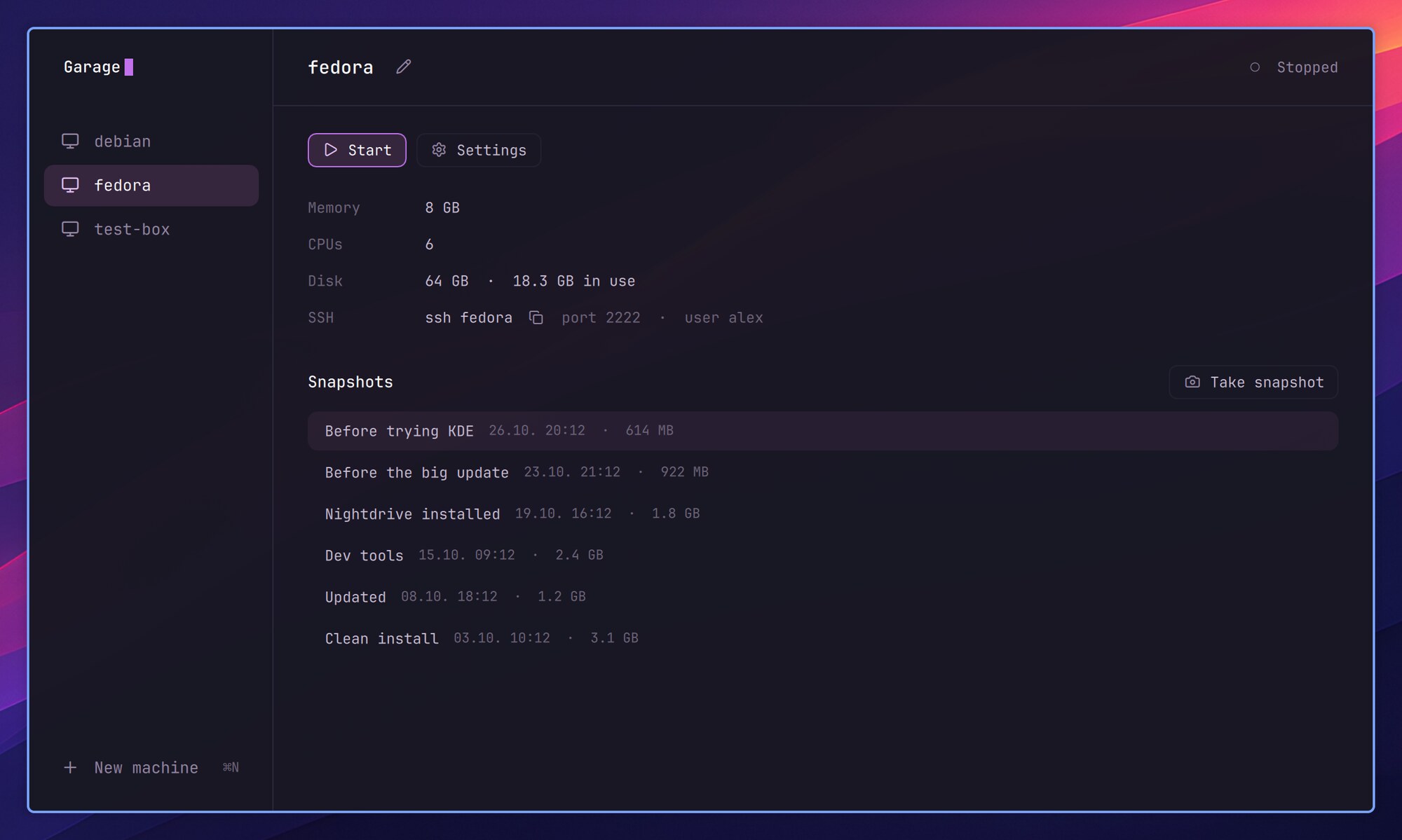
Make a new machine from a ready-made Fedora image, with no installer to click through, or from any ISO. Each one runs at nearly your computer's own speed, with graphics for a desktop of its own, and its display opens in a window that you tile like any other. Nightdrive in a VM fits itself to that window as you resize it.
Snapshots are the heart of it. Take one before the big update or before trying another desktop, and go back with a double click. A duplicate of a snapshot takes no extra disk space, and each one shows how much space deleting it would free.
The top bar's Garage icon lights up while a machine runs, and a click starts one or brings its display forward. ssh NAME gets you into any running machine by its name, several at once.
Garage runs on Apple Silicon Macs and on PCs. It doesn't come with every install: add it from Launcher › System › Install › Recommended.
Any window, any size.
Nightdrive is a tiling desktop, and its apps are made for it: they fit whatever window they're given.
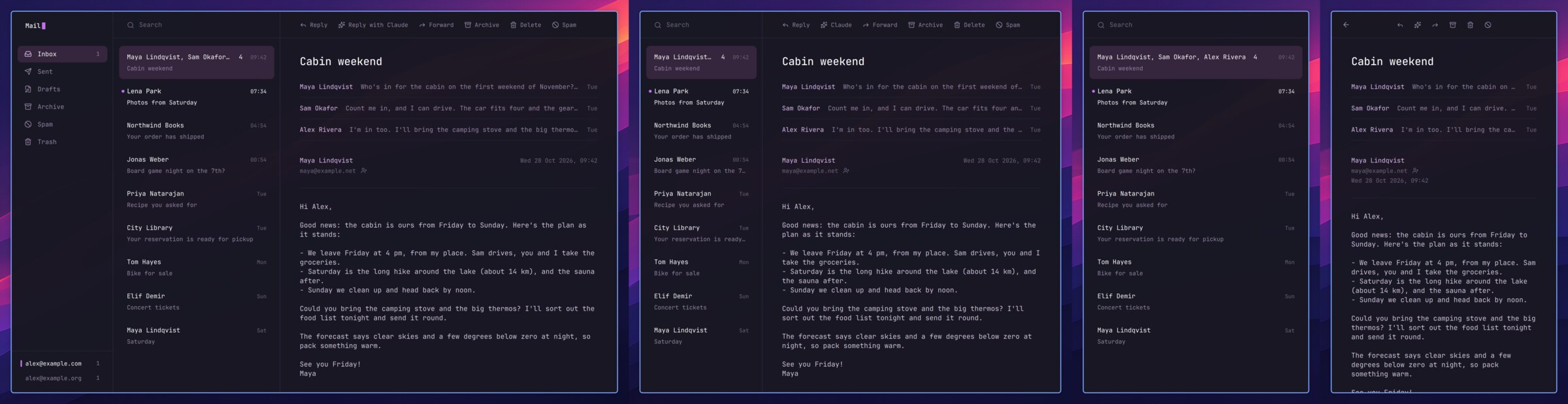
Tile Mail beside your browser and the folders step aside. Narrower still, the list and the message take turns: Enter opens a message, Esc goes back. Contacts, Deck and Garage do the same, so an app is as useful in a third of the screen as on all of it.
Welcome to Nightdrive – your computer, set up with you.
The first time you log in, Nightdrive helps you get everything going, one app at a time.
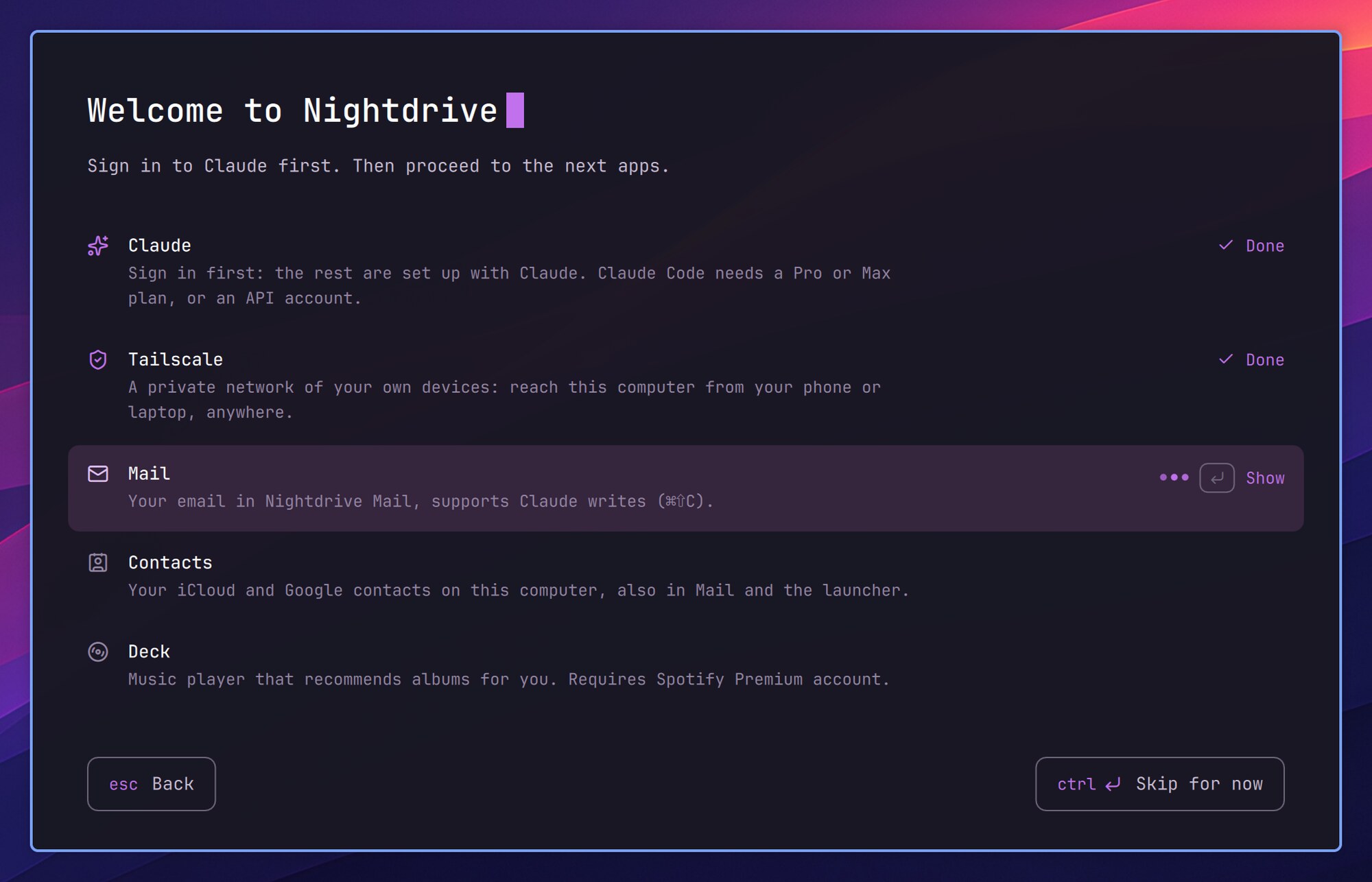
Welcome to Nightdrive asks first whether you have a Claude Pro or Max plan. If you do, you sign in to Claude, and then Claude sets up Tailscale, Mail, Contacts and Deck with you, each in a session of its own that does only that one thing. Your passwords never go in the chat: Claude gives you the command, and you type them into your computer's keyring yourself.
Without Claude, Welcome shows each app's steps right there, one at a time and in plain words, starting with why it's worth having. It asks your mail address and server in a form and writes the settings for you to check. And if you'd rather do it all yourself, it lists the apps and opens each one's instructions.
Skip what you don't need. Launcher › System › Set up Nightdrive brings Welcome back whenever you want.
One line to install, no questions asked.
Nightdrive now starts from a minimal Fedora and adds only what the desktop needs.
The installer asks nothing. Paste one line, type your password once, and it runs to the end on its own. Claude Code, Tailscale, Mail, Contacts, Deck and Ferry come with every install, like the rest of the desktop, and each stays quiet until you set it up. If you'd rather pick the parts yourself, --choose lists them first. When it's done, it tells you what to do next: restart, log in, and Welcome takes it from there.
The recommended base is now Fedora 44 Minimal: on an Apple Silicon Mac, the Minimal image in the Asahi installer, and on a PC, Fedora's netinstall image with nothing but the base system. Nightdrive builds the desktop on top, so there's no second desktop underneath and nothing running that you didn't ask for. Firefox is themed from its very first start, and Apostrophe comes along for Markdown.
Installed Nightdrive on Fedora KDE? It goes on working as before, with KDE as a fallback session. When you're ready, nightdrive minimal turns it into what a fresh install on Minimal is, Macs included. It never touches the kernel, the bootloader or what your computer needs to start and fix itself. --dry-run shows first what it would remove, and when it's done, it leaves you the way back.
And a lot of little things that add up.
Some you'll notice on the first day, some you'll only notice when something doesn't go wrong.
The Launcher counts for you.
Type 3*8, 15% of 80, 5 km in miles or 100 eur in usd in the Launcher, and the answer is the first row. Enter copies it. Units and currencies work too, with exchange rates updated once a day, and a setting shows a decimal comma if that's what you're used to.
Keep Awake keeps your computer from sleeping.
A new plugin puts a coffee cup in the top bar. While it's on, the screen stays on and the computer stays awake, even with the lid closed: until you turn it off, or for one to eight hours. Add it from Launcher › System › Install › Plugins.
Nightdrive sounds like itself.
The desktop now has sounds of its own, made from scratch like its notification sounds: a soft tick on each volume step, a shutter for a screenshot, the charger going in, a device plugging in or out, a wrong password, lock, log out and shut down. Do Not Disturb silences the ones that happen by themselves, and Settings › Notifications turns them off.
Safer by default.
We went through Nightdrive looking for weak spots, and fixed what we found:
- Remote login (SSH from another computer) now works over Tailscale and on the networks you allow, not at a café. Each new network asks with a notification.
- Claude gets no tools when it writes, not even your own MCP servers or claude.ai connectors, so a web page's title, a mail or a crashed program's output can't steer it.
- Mail opens only web and mail links from a message, blocks tracking more thoroughly, and checks the mail server's certificate when it sends.
- Password prompts now always come up on top, in the middle of the screen, so they can't hide behind the Launcher.
- Found a security problem? The security policy tells how to report it privately.
And more
- ⌘⇧V in any Launcher text field pastes from your clipboard history.
- Snippets can have several lines, like an email signature.
- Ctrl+click on a file path in the terminal opens it, in your code editor at the right line.
- ⌃⌘+click on a link opens it in a floating window in the middle of the screen.
- Firefox opens with an empty window, not yesterday's tabs. History › Restore previous session brings them back.
- The top bar fits a narrow screen: icons that don't fit move into a … menu. The logo can be hidden too.
- Files and the file picker share the look of Nightdrive's apps and terminal, and Space previews videos too.
- About Nightdrive in Launcher › System shows your version, channel and computer, with links to the docs and the changelog.
- Web apps open other sites' links in your default browser.
What's next
A few things are already on the way, but first, time to kick back and enjoy the drive. The next couple of weeks go to maintenance: bug fixes and little finishing touches here and there. After that, expect new apps, like Calendar and Backup, and installable ISO images are planned too.
Want to help? Nightdrive's apps are built from a kit, and you can build your own with it. Ideas and wishes are welcome in Discussions.
The changelog has everything else. Thanks for driving along. 🌆
— Jari